Access multiple menus
Log in to your Clover dashboard.
From the left, select Items > Menus. The menu displays as follows on your dashboard:
Menus - Homepage
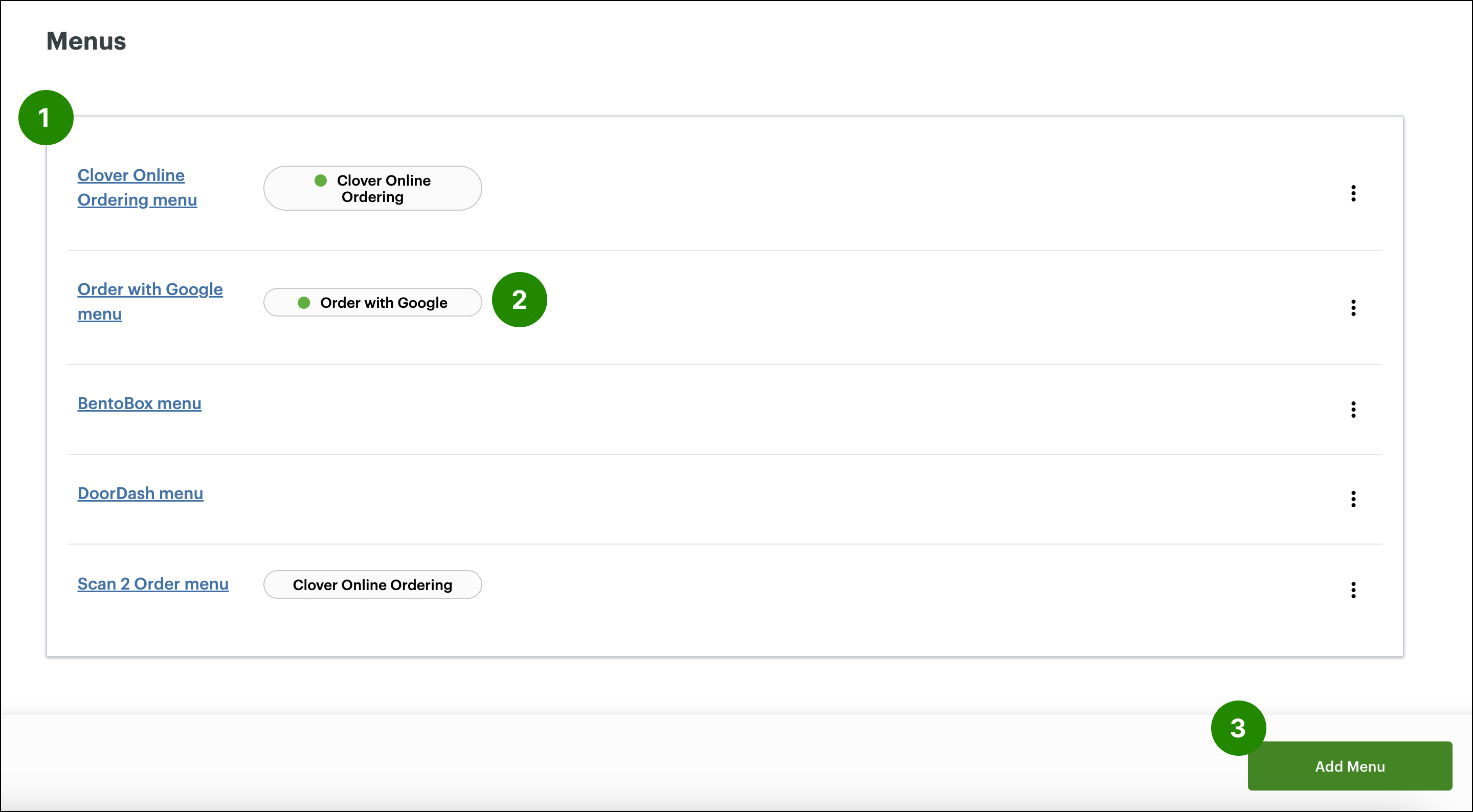
All created menus display on the menus home page. If you already have an online menu active with Clover Online Ordering, you will see it appear here as Online menu. The channel(s) the menu is assigned to display next to the menu name. The green circle indicates that the menu is currently active on that channel. You can create a new menu at any time from this page.
Related Articles
Enable multiple menus
Enable multiple menus to start using it with your online ordering partners. Prerequisite Admins, managers, or employees whose roles include the Access Multiple Menus > Create Menus permission can enable multiple menus. If you don’t see the option to ...Work with multiple menus
Multiple menus allows you to create and manage separate menus for each online ordering partner, including Clover Online Ordering, BentoBox, Uber Eats, Grubhub, Order with Google, and Doordash. Each menu can display different categories, items, and ...Create a menu
You can create as many menus as you like, although only one active menu is allowed per online ordering channel. If you want to publish a new menu to a channel that already has one, the new menu replaces the existing menu. Inactive menus are available ...Organize offerings with menu management
The Menu Management feature gives you complete control over what you sell and where you sell it across online ordering channels and your devices. With the ability to create multiple menus, you can customize item availability, pricing, and categories ...Edit item prices individually
Editing item prices individually will only update the price of an individual item. Log in to your Clover dashboard. From the left, select Items > Menus. Select the menu you want to edit from the Menus homepage. Find the item you want to edit. Select ...