Back Office: Additional Report Settings
- Sign into the Back Office and select a Store.
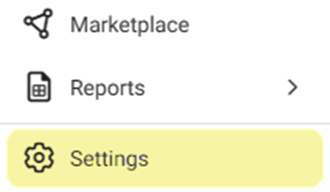
- On the left-side Navigation Panel, click Settings.
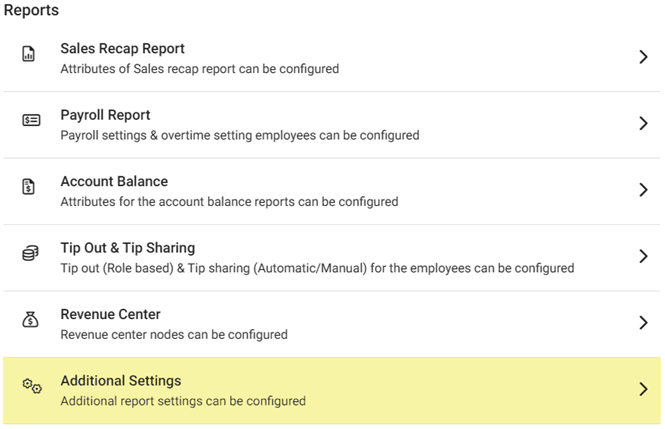
- On the Settings page, under Reports click Additional Settings.
The Additional Settings page contains multiple toggles for fields to Enable (YES) to display on reporting.
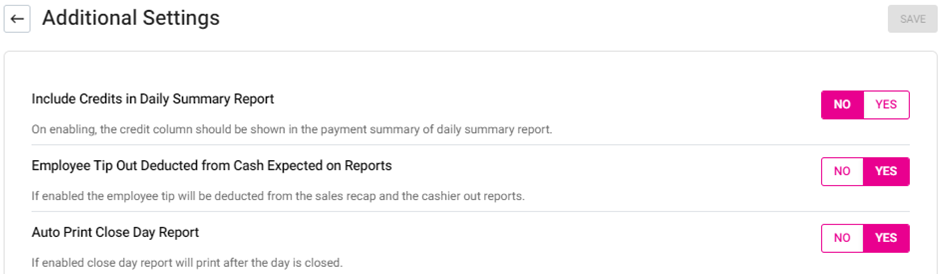
Include Credits… – If Enabled, the Credit column will appear on the Payment Summary of the Daily Summary Report. If Disabled, it won’t appear.
Employee Tip Out… – If Enabled, the employee tip will be deducted from the sales recap and in the cashier out reports. If Disabled, it will not be deducted.
Auto Print… – If Enabled, the auto print day report will be automatically reset at the end of the day. If Disabled, it will continue to generate reports regardless of the Close day.
- When all toggles are set, click Save. The ‘Additional Settings Saved Successfully’ confirmation message appears.
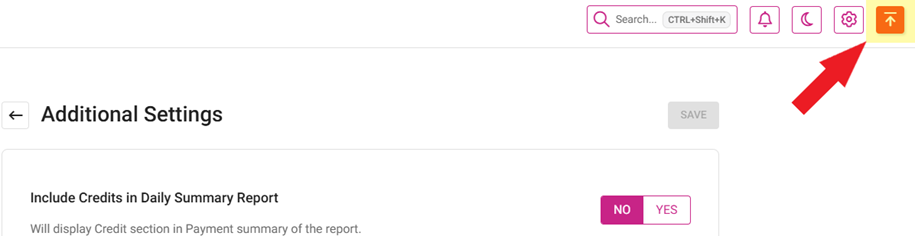
Once saved, be sure to sync with Back Office by clicking the Publish button at the top-right of the page (upward facing arrow with horizontal line atop).
Related Articles
Back Office: Tip Out & Tip Sharing Report Settings
Sign into the Back Office and select a Store. On the left-side Navigation Panel, click Settings. On the Settings page, under Reports click Tip Out & Tip Sharing. The Tip Out & Tip Sharing page contains 2 tabs: Tip Outs and Tip Sharing. Tip Outs Tip ...
Employee Report
Sign into the Back Office and select a Store. On the left-side Navigation Panel, click Reports then Employee. The Employee report page displays a comprehensive set of data on your staff, with tabs for: Attendance Role Based Payroll Labor Labor By Job ...
Inventory Report
Log into the Back Office and select a Store. Under Reports > Inventory Reports. On the Inventory Reports dashboard, select a tab. Master Stock Purchased Item Consumption Log Compare Inventory Count Sheet COGS Consumption Log Count Sheet Adjust ...
Back Office: Payroll Report Settings
Sign into the Back Office. On the left-side Navigation Panel, click Settings. On the Settings page, under Reports click Payroll Report. On the Payroll Report page, 3 tabs appear: Settings, Overtime Settings, and Manage Breaks. Settings Over Time ...
Back Office: Inventory Matrix Report Settings
Sign into the Back Office. On the left-side Navigation Panel, click Settings. The Settings page appears. Under Inventory click Matrix Report Settings. The Matrix Report screen appears. Profit Threshold Amount – (Mandatory) Enter the threshold value ...