Back Office: Batch Settings
Sign into the Back Office.
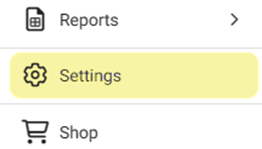
On the left-side Navigation Panel, click Settings. The Settings page appears.
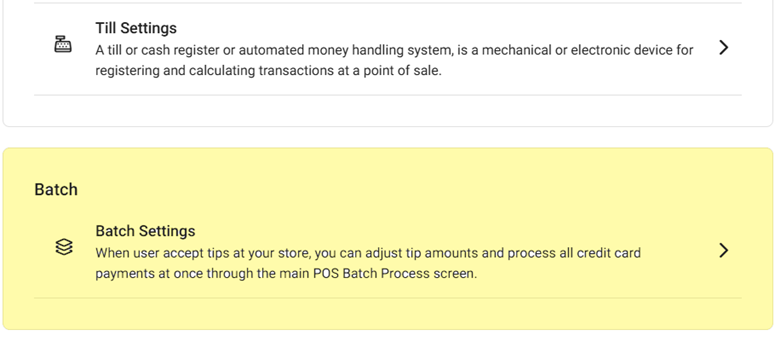
Under Batch click Batch Settings. The Batch Settings page appears.
Show Sale Type Transaction in Batch Report – if Enabled (YES), the Transaction Type column will appear on Batch reports.
Enable Auto Batch – If Enabled (YES), then select the Time (clock view).

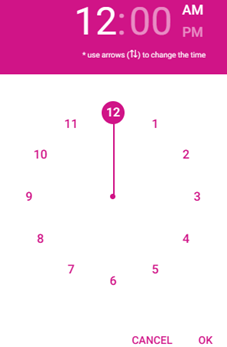
The batch will run automatically for the chosen Time (clock view). If Disabled (NO), the batch will occur manually.
Print Batch Report – If Enabled, the Batch report will be printed after submitting the batch.
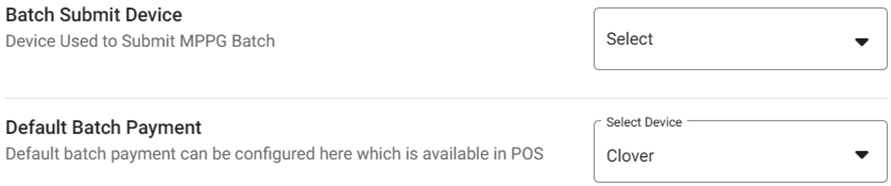
Batch Submit Device – Select the device to submit the batch from the dropdown (options configured with MPPG and SPPax devices).
Once the device is selected, be sure to always submit the batch from that device only (such as A001, A002).
Default Batch Payment – Select the default type of payment Device for the batch from the dropdown (such as MPPG Credit Card or SPPax).
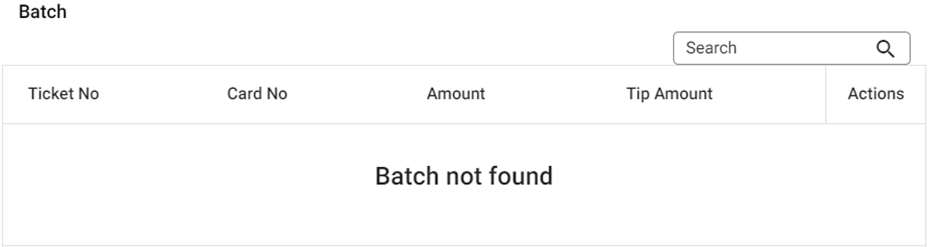
Batch - Displays the list of all the Batches that are available in POS. When no closed tills are added, the message ‘Batch not found’ appears.
The Search option applies to values in all columns.
Related Articles
Back Office: Payment Method Settings
Sign into the Back Office. On the left-side Navigation Panel, click Settings. The Settings page appears. Under Payments click Payment Method. The Payment Method page appears. If no Payment Methods exist, the message ‘Payment Method not found’ ...
Online Ordering - Batch
Sign into the Back Office. On the left-side Navigation Panel, select Online Ordering. On the Online Ordering page, click Batch. The Batch page appears, which displays a table view of Batch transactions. Note: You can conduct a Search, filter by ...
Back Office: User Management - Employee Roles Description
Detailed information about each role in the User Management Role settings Backoffice: These settings control the settings that are programmed in the back office Gratuity – Changing the Gratuity setting Gift Card – Can access the gift card information ...
Batch Report (Credit Card Settlement)
Sign into the Back Office and select a Store. On the left-side Navigation Panel, click Reports then Batch. The Batch page displays Batch Report activity based on the following selections: Node: Select from the list of registered POS Nodes (one or ...
Back Office: User Management - How to Add, Edit and Update Employee Roles
Sign into the Back Office and select a Store. On the left-side Navigation Panel, click User Management then select Roles. On the Roles page, click + New Role at the top-right. The New Role pane appears. You can update a Role by clicking the ...