Back Office: Inventory Taxes Settings
Sign into the Back Office.
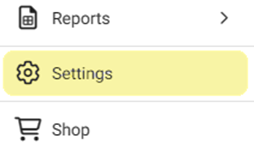
On the left-side Navigation Panel, click Settings. The Settings page appears.
Under Inventory click Taxes. The Taxes screen appears.
Enable Taxes Toggle – If Enabled (YES), the ‘Taxes Enabled Successfully’ banner appears at the top-right, and you can create a tax as well as view created taxes.
Click Edit (pencil) on a row to update an existing Tax.
Click Delete (trash can) on a row to delete the existing Tax. Click Delete again on the confirmation pop-up to complete deletion of the tax.
If the Tax is connected to a Category or Sub Category, it cannot be deleted.

Click + New Tax to create a new Tax, or the pencil icon to update an existing Tax. The pane appears on the right.
Tax Name – (Mandatory) Enter the name of the tax (maximum of 25 characters).
Percentage – (Mandatory) Enter the percentage amount of tax to be taken out (you can click ▲/▼ to increase/decrease the value. Only numbers are allowed and cannot be 0.
Inclusive – If Enabled (YES), the tax will be considered inclusive. If Disabled (NO), it will be considered an exclusive tax.

Click Save to save the new Tax. The ‘Tax… Successfully’ confirmation banner appears.
Click Cancel to discard the new tax information and close the pane.
Related Articles
Back Office: Products/Items - Products/Items
Sign into the Back Office and select a Store. On the left-side Navigation Panel, click Products/Items then Products/Items. Creating a New Menu Item On the Products/Items screen, click + New Menu Item or click the ••• under Actions to Edit, Copy or ...
Back Office: Store Inventory Settings
Sign into the Back Office. On the left-side Navigation Panel, click Settings. The Settings page appears. Under Inventory click Store Inventory. The Store Inventory screen appears. At the top is a listing of the reports utilizing the Business Date and ...
Back Office: Inventory Matrix Report Settings
Sign into the Back Office. On the left-side Navigation Panel, click Settings. The Settings page appears. Under Inventory click Matrix Report Settings. The Matrix Report screen appears. Profit Threshold Amount – (Mandatory) Enter the threshold value ...
Taxes
Sign into the Back Office. On the left-side Navigation Panel, click Products/Items then Taxes. On the Taxes screen, click + New Tax or the Pencil icon to update an existing Tax. On the New/Update Tax screen: Enter the Name (Mandatory) and any ...
Back Office: Taxes
Sign into the Back Office. On the left-side Navigation Panel, click Products/Items then Taxes. On the Taxes screen, click + New Tax or the Pencil icon to update an existing Tax. On the New/Update Tax screen: Enter the Name (Mandatory) and any ...