Back Office: Serving Size Levels
- Sign into the Back Office.
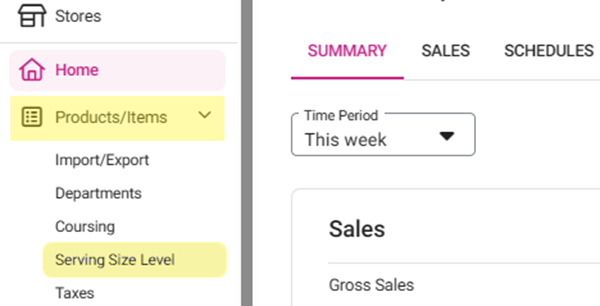
- On the left-side Navigation Panel, click Products/Items then Serving Size Level.
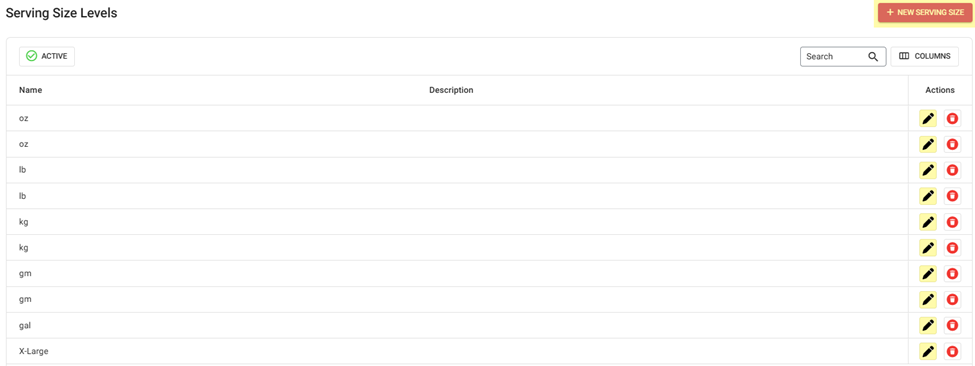
- On the Serving Size Levels screen: create a New Serving Size by clicking + NEW SERVING SIZE or update an existing Serving Size by clicking the pencil icon.
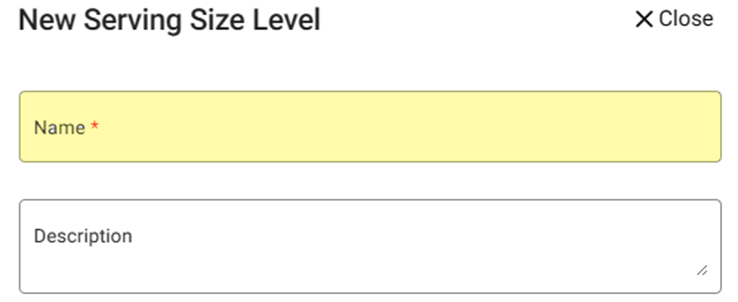
- For a Serving Size Levels:
- Enter the Name (mandatory).
- Enter the Description.
- Click Save or Update when finished.
Related Articles
Creating Serving Sizes
Sign into the Back Office. On the left-side Navigation Panel, click Products/Items then Serving Size Level. On the Serving Size Levels screen: create a New Serving Size by clicking + NEW SERVING SIZE or update an existing Serving Size by clicking the ...
Back Office: Modifier Groups
Sign into the Back Office and select a Store. On the left-side Navigation Panel, click Products/Items then Modifier Groups. The Modifier Groups screen appears. Modifier Group Table If a Modifier Group was imported, it will be automatically populated ...
Back Office: Modifiers
Sign into the Back Office and select a Store. On the left-side Navigation Panel, click Products/Items then Modifiers. On the Modifiers screen: create a New Modifier by clicking + NEW MODIFIER or update an existing Modifier by clicking the pencil ...
Back Office: Sub Categories
Sign into the Back Office. On the left-side Navigation Panel, click Products/Items then click Subcategory. On the Subcategories page, click + New Subcategory at the top-right. POS Display Button - Click the small colorized square next to the large ...
POS: Serving Size
Selecting or Modifying a Serving Size in POS If a Menu Item is configured with Serving Size options, they will be displayed as named boxes on the screen: You can select any one of the displayed Serving Sizes. Upon selecting a Size, the Menu Item will ...