Full Start of Day Process
Start of Day Process:
Enter 4-digit pin and select “Clock In”
On iOS:
On Android:
Starting Till:
Select “Operation”
On iOS:
On Android:
Select “Till Management”
On iOS:
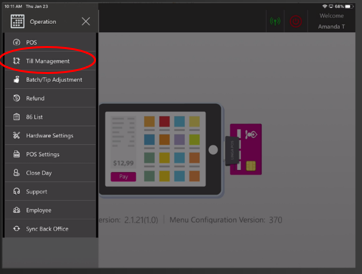
On Android:
Enter the amount of money that is needed to start the till and select “Continue”
On iOS:
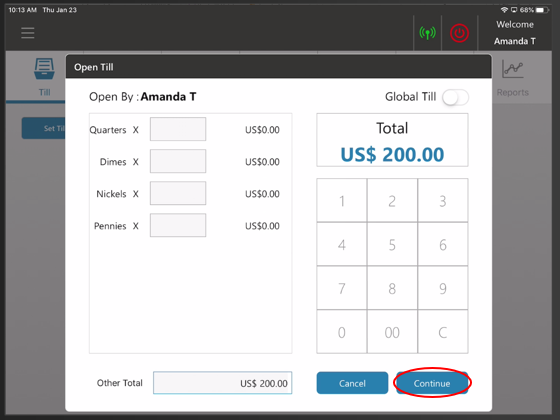
On Android:
The Till is now active
On iOS:
On Android:
Starting a Global Till:
Enable “Global Till” Enter the amount of money that is needed to start the till and select “Continue”
On iOS:
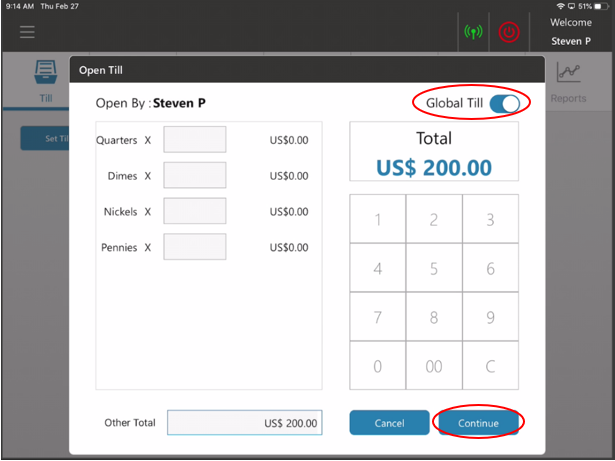
On Android:
Global Till is now active
On iOS:
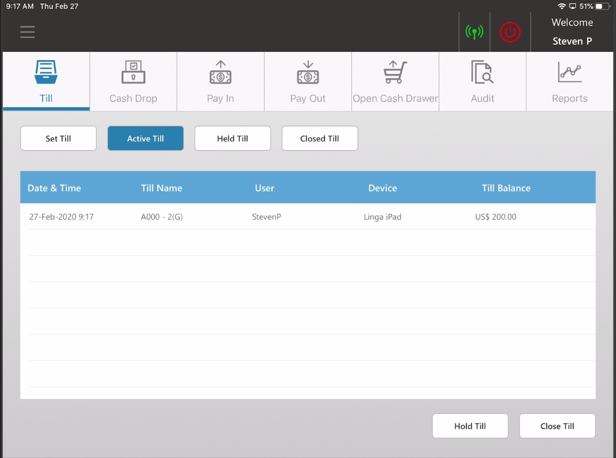
On Android:
Related Articles
POS: Operation - Till Management (Till Tab)
The Till tab displays the following sub-tabs: Set Till Active Till Held Till Closed Till Set Till Set Till Setting a Till is entering the amount to Till starts with. Select Set Till, and the Open Till window appears. Enter the Denomination and Tip ...POS: Operation - Till Management
Navigation: Log in to POS, then select Operations > Till Management Till is the money trays that fit into the Cash Drawers. They help Owners and Managers to keep track of the Cash that passes through their business daily. When ordering from the Order ...How to Close the Day: End of Day Process (Manual)
To successfully close the day, please follow the directions below: Start by Ensuring All Your Checks are Closed: Login to the POS and Select "ALL" to View all checks: If you have Checks under Active Tab you'll want to Close them out. Select “Closed” ...POS: Operation - Close Day
Close Day is the last step before ending the Business Day. Navigation: Log in to POS, then select Operations > Close Day Select Date Select a specific Date for generating the report. This selected Date will appear in the generated report. Only past ...POS: Operation - Till Management (Reports Tab)
For the Employee filter, you can view all the Employees which were created in User Management in BO (alphabetical order) along with Cancel and Generate options. Generate: Click Generate then Apply to get the search results. Updated results can be ...