Creating Item Based Discounts
- Sign into the Back Office and select a Store.
- On the left-side Navigation Panel, click Products/Items then click Discounts.
Create an Item Based Discount
- On the Discounts page, select the Item Based tab (default selection), then click + New Discount. You’re taken to the Item Based page.

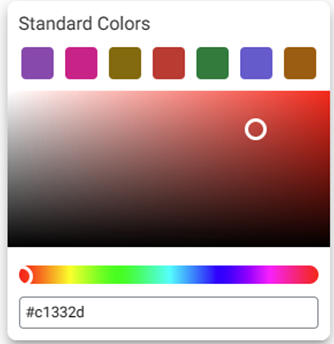
- Click the small colorized square next to the large one. The Standard Colors pane appears. Select the Standard Color and use the slider to adjust the shade.
- Click the Upload New Image
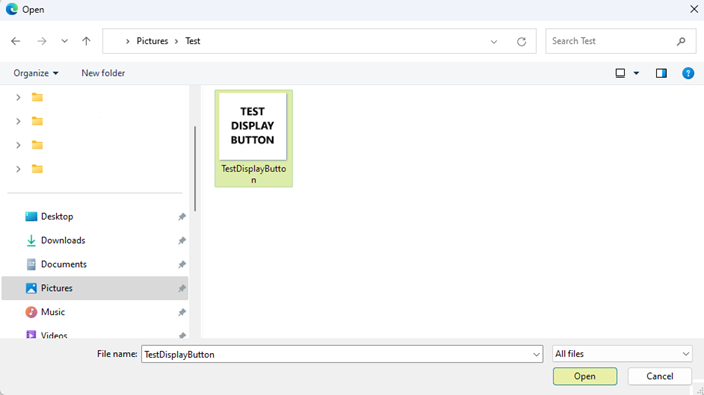
 button. Navigate to the image you want to use to represent the Discount, then either double-click the file or click and click Open.
- File Type of jpg or .png
- Maximum of 2 MB
- 400x400 resolution
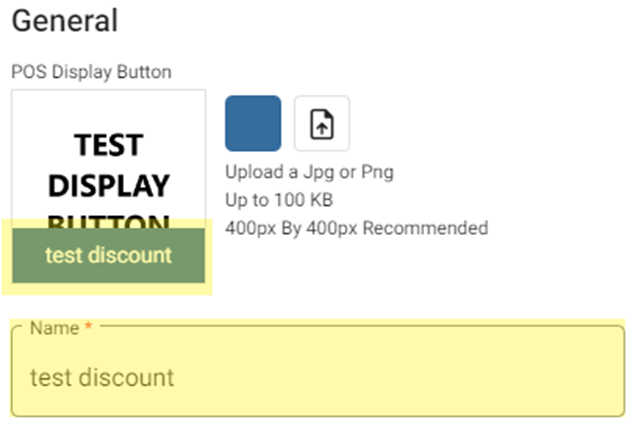
- The uploaded image will have the Discount’s Name at the bottom.
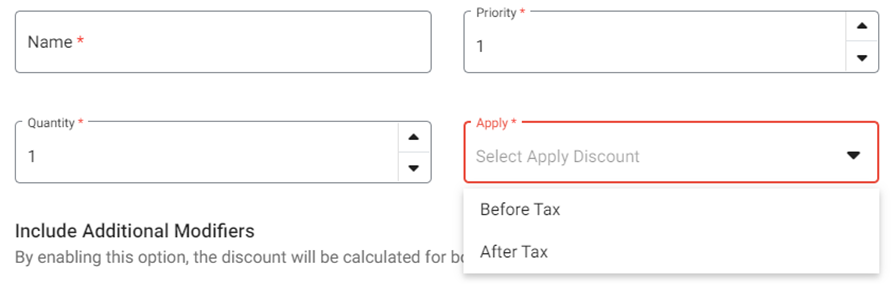
- Enter the Name, Priority (typically 1), Quantity (number of times ordered to unlock Discount), and whether to Apply Before or After Tax.
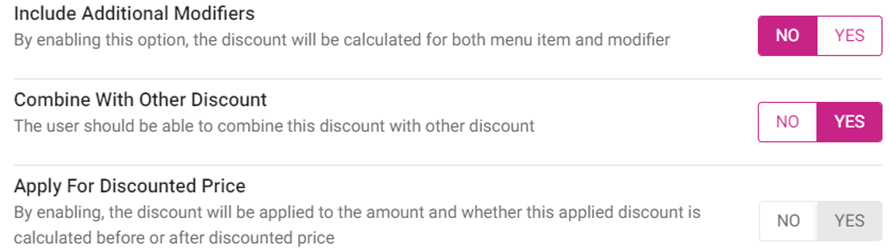
- Select whether to Include Additional Modifiers.
- Select whether to Combine With Other Discount. If Yes, then Apply For Discounted Price appears and is enabled.
- Select the Level of the Discount Type:
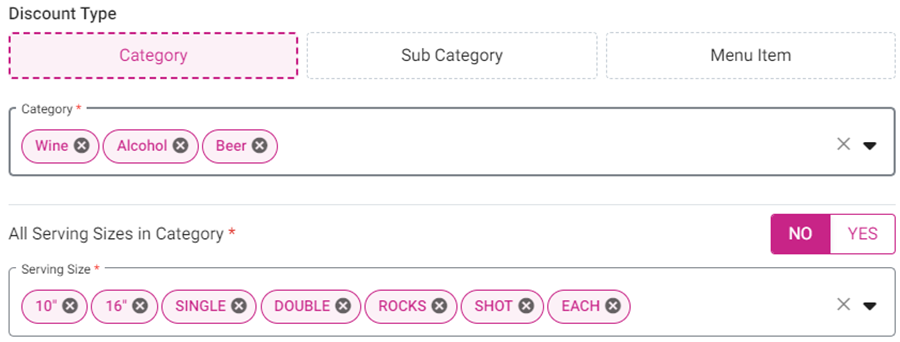
Category
- Select the Categor(ies) from the dropdown.
- Select whether to include All Serving Sizes in the Category. If No, then select the Serving Size(s) from the dropdown.
Sub Category
- Select the Sub Categor(ies) from the dropdown.
Select whether to include All Serving Sizes in the Sub Category. If No, then select the Serving Size(s) from the dropdown.
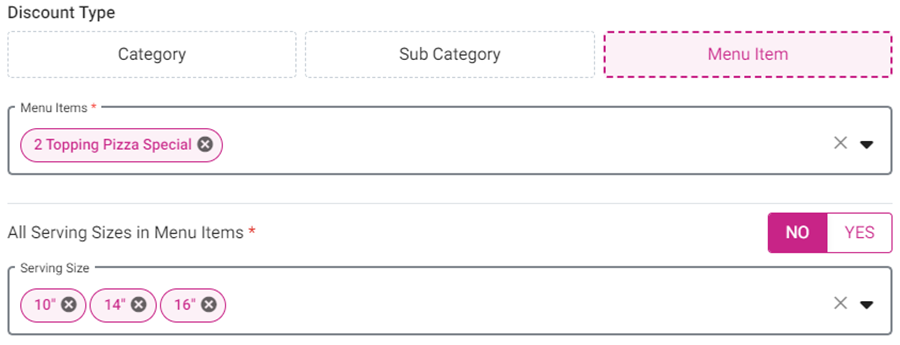
Select the Menu Item(s) from the dropdown.
Select whether to include All Serving Sizes in the Menu Item(s). If No, then select the Serving Size(s) from the dropdown.
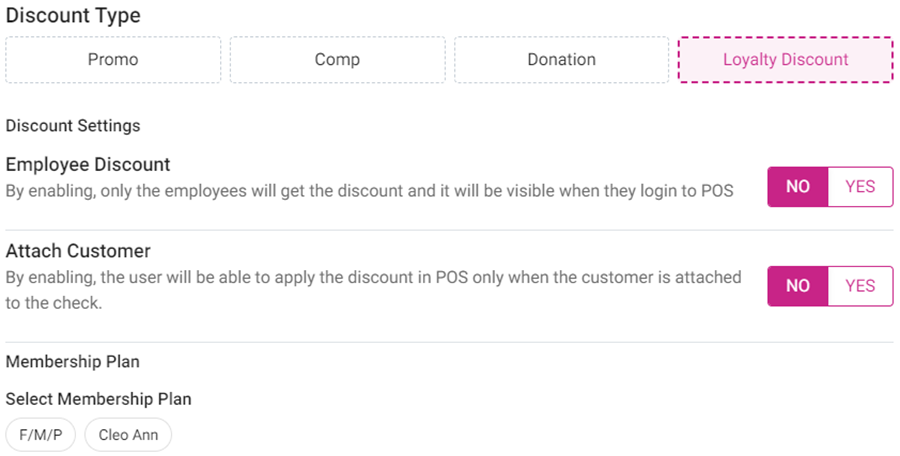
Select the Discount Type
Select whether this is an Employee Discount. If Yes, the other Discount Settings are hidden and you proceed directly to Discount Rate. If No, proceed to the other selections under Discount Settings.
- Select whether this Discount is Coupon Only. If Yes, enter the unique Coupon Code (letters or numbers only, no special characters [such as !, @, #, $]).

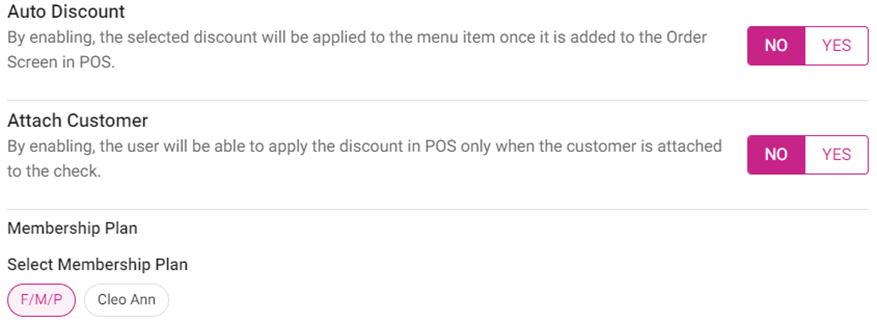
- Select whether this is an Auto Discount (automatically applied to the item once it’s added to the order).
- Select whether there is a requirement to Attach a Customer to the check to apply the Discount.
- Select whether there is a Membership Plan for this Discount.
Loyalty Discount
- Select whether this is an Employee Discount. If Yes, the other Discount Settings are hidden and you proceed directly to Discount Rate. If No, proceed to the other selections under Discount Settings.
- Select whether there is a requirement to Attach a Customer to the check in order to apply the Discount.
Select whether there is a Membership Plan for this Discount.
Select the Discount Rate
- Percentage – Enter the Percentage (%) amount. Type the amount or use ▼▲ to change the amount by intervals of 1.

- Amount – Enter the Amount ($).
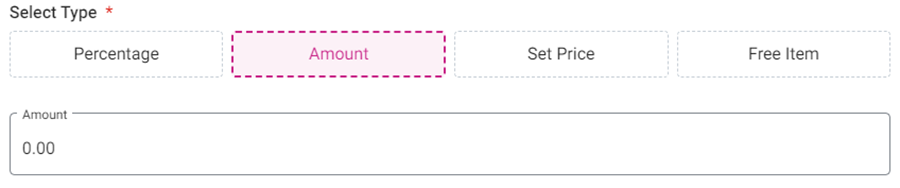
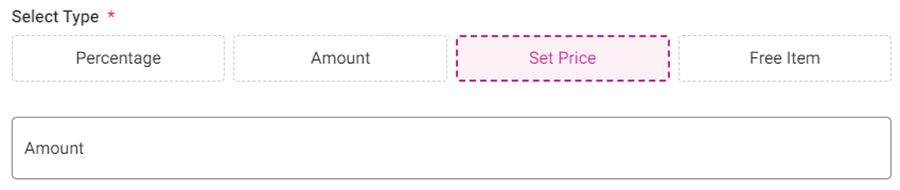
- Set Price - Enter the Amount ($).
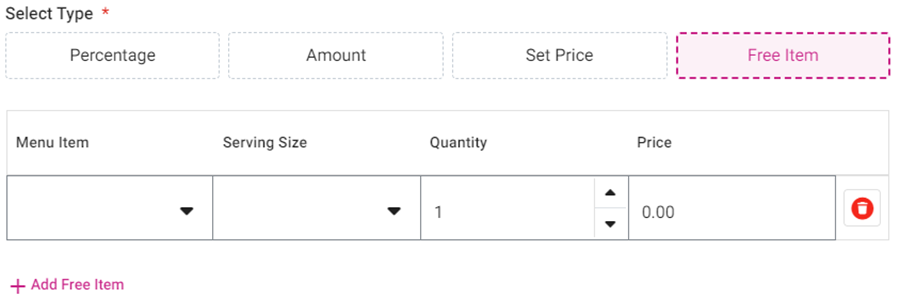
- Free Item - Select the Menu Item and Serving Size from the dropdown. Then enter the Quantity and Price. Click + Add Free Item to add another item that applies to the Discount.
Select the Availability
- Always – Discount will be available at all times.
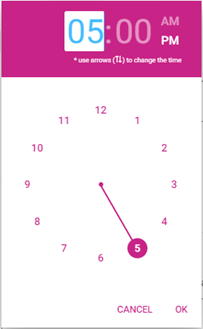
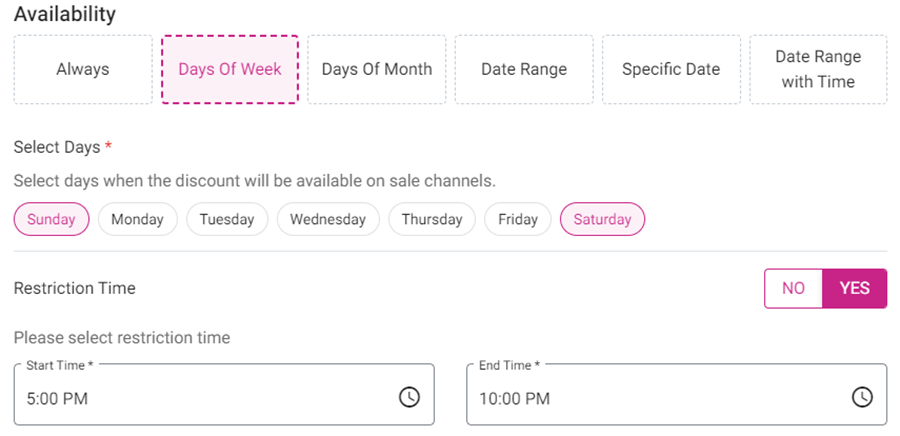
Days Of Week – Select the Days the Discount applies. If there’s any times during those days to Restrict the Discount, then select Yes for Restriction Time and enter the Start and End Times the Discount is unavailable.
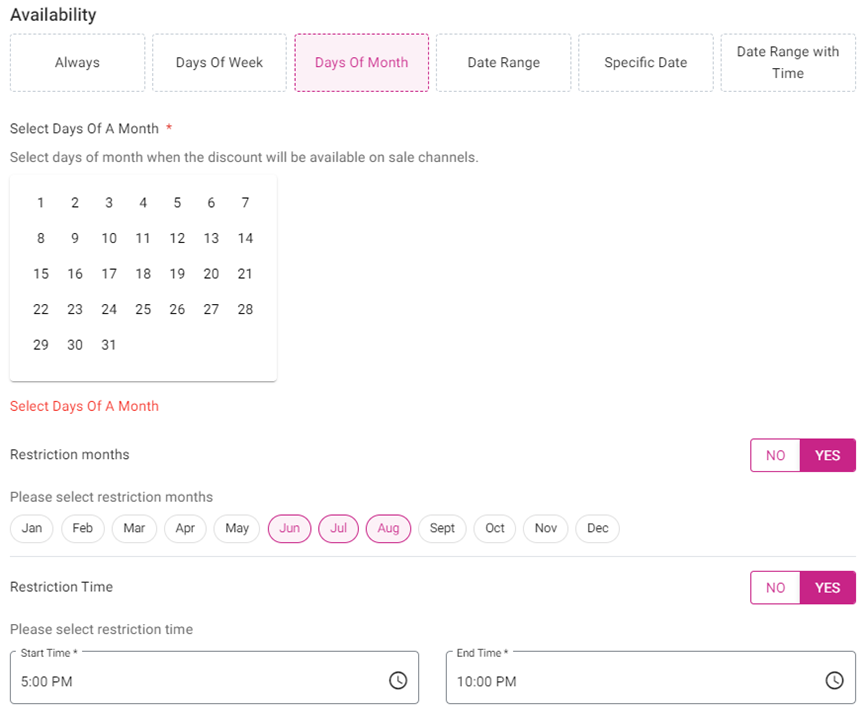
Days Of Month – Select the Days of each Month the Discount will be available. If there’s any months you don’t want the Discount to be available, select Yes for Restriction Months then select the months you want the Discount to be unavailable. If there’s any times during those month’s days to Restrict the Discount, then select Yes for Restriction Time and enter the Start and End Times the Discount is unavailable.
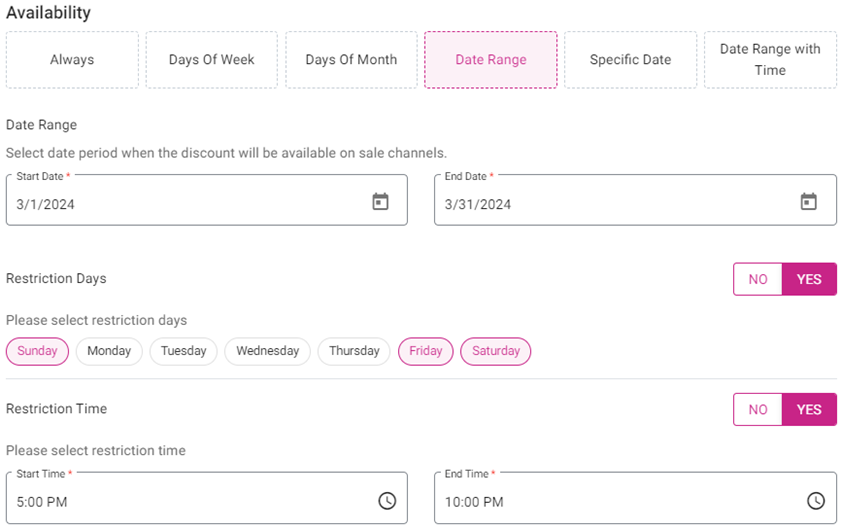
Date Range – Enter the Start and End Dates. If there are any days during that range to Restrict the Discount, then select Yes for Restriction Days and select the Days the Discount is unavailable. If there’s any times during that range to Restrict the Discount, then select Yes for Restriction Time and enter the Start and End Times the Discount is unavailable.
Specific Date – Enter the single date the Discount will be available. If there’s any time during that to Restrict the Discount, then select Yes for Restriction Time and enter the Start and End Times the Discount is unavailable.
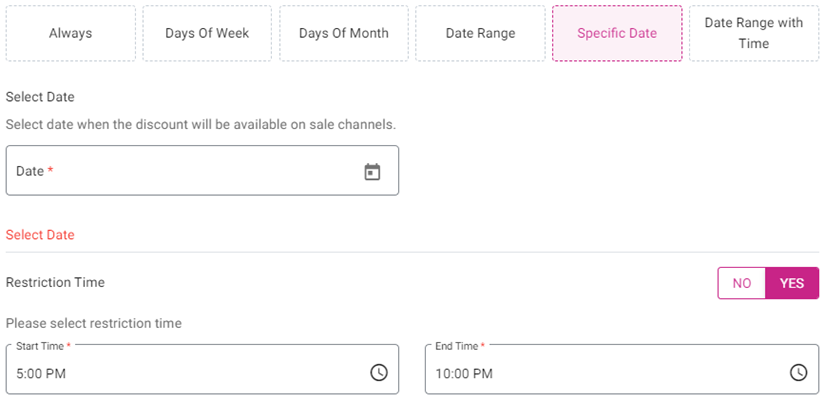
Date Range with Time – Enter the Start and End Dates followed by the Start and End Times. If there are any days during that Range to Restrict the Discount, then select Yes for Restriction Days and select the Days the Discount is unavailable.
Select the Visibility – Choose whether to Restrict Visibility by Role. If Yes, select the Roles that are eligible for this Discount. Click Show All to view all the Role options.
When the Discount is ready, click Save and Publish. The Item Based Discount is set up, and you’re returned to the main Discounts screen.
Related Articles
Creating Check Based Discount
Sign into the Back Office and select a Store. On the left-side Navigation Panel, click Products/Items then click Discounts. On the Discounts page, select the Check Based tab, then click + New Discount. You’re taken to the Check Based page. Tip: You ...
Back Office: Item-Based Discounts
Sign into the Back Office and select a Store. On the left-side Navigation Panel, click Products/Items then click Discounts. Create an Item Based Discount On the Discounts page, select the Item Based tab (default selection), then click + New Discount. ...
Back Office: Check-Based Discounts
Sign into the Back Office and select a Store. On the left-side Navigation Panel, click Products/Items then click Discounts. On the Discounts page, select the Check Based tab, then click + New Discount. You’re taken to the Check Based page. Tip: You ...
POS: Check Options - Item Based Discount
Background in Back Office On the Products/Items > Discounts page, ensure you're on the Item Based tab (should be the left-most and default option when navigating to the page). See the Back Office: Item Based Discounts Knowledge Base Article ...
Discounts Report
Sign into the Back Office and select a Store. On the left-side Navigation Panel, click Reports then Discount. Sales Created By Window – When a Sales Created By value is clicked, a new window opens: Upon clicking the Sale Created By employee, it ...