POS: Check Options - Submit an Order
On the Menu screen, select the  Option button at the bottom.
On the Check Options screen, select Order.
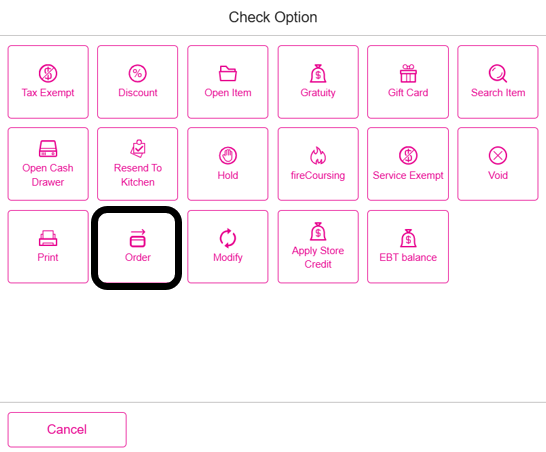
When Order is clicked, Menu Items from the Check will be send to the Kitchen.
Related Articles
POS: Payment Screen Options
Log in to POS, add Menu Items then click on the Payment option. On the Payments page: the options Tax Exempt, Add Gratuity, Discount and Print options will appear. Tax Exempt When Tax Exempt is selected: the Tax Exempt pop-up appears, and displays ...
POS: Payment Screen Options
Log in to POS, add Menu Items then click on the Payment option. On the Payments page: the options Tax Exempt, Add Gratuity, Discount and Print options will appear. Tax Exempt When Tax Exempt is selected: the Tax Exempt pop-up appears, and displays ...
POS: Uber Eats Integration
For more information on the Uber Eats (UE) Integration, see the Uber Eats Knowledge Article. Uber Eats Orders Appearing in POS Once an Order is placed from Uber Eats, the message ‘You have 1 online order’ appears in POS. The Check will be listed ...
POS: Loyalty Payments
For more information on Loyalty programs, see the Loyalty section of the Back Office Add-Ons article. Points Based Redemption Back Office Navigation: Log in to the Admin page On the Admin page, select Accounts. Under the Account Settings section: ...
POS: Loyalty Payments
For more information on Loyalty programs, see the Loyalty section of the Back Office Add-Ons article. Points Based Redemption Back Office Navigation: Log in to the Admin page On the Admin page, select Accounts. Under the Account Settings section: ...