POS: Notification Settings
These Settings are intended for receiving notification for these events.
Back Office
Navigation: Log into Staging Revamp, select a Store, then select Settings > Store > Notification
Notifications Settings Page
The Notifications Settings page contains YES/NO toggles for the following options:
- Discount Toggle: When the toggle is set to YES, enter the Discount amount in the Discount Limit field (only numerical value allowed).
- The Notify By option will appear, with two checkboxes Text and Email.
- Void Toggle: When the toggle is set to YES, enter the Void amount in the Void Limit field (only numerical value allowed).
- The Notify By option will appear, with two checkboxes Text and Email.
- Max No Cash Drawer Accessed for No Sale: When the toggle is set to YES, enter the limit in Limit field (only numerical value allowed).
- The Notify By option will appear, with two checkboxes Text and Email.
- Time Clock: When the toggle is set to YES, a Time Clock notification will be sent to the registered Email or Number.
- The Notify By option will appear, with two checkboxes Text and Email.
- Daily KPI: When the toggle is set to YES, a KPI notification will be sent to the registered Email or Number.
- The Notify By option will appear, with two checkboxes Text and Email.
- End of the day alert: When the toggle is set to YES, the End of the Day Alert notification will be sent to the registered Email or Number.
- The Notify By option will appear, with two checkboxes Text and Email.
- Wait List: When the toggle is set to YES, a predefined text notification will be sent to the registered Email or Number.
- The Custom Text Box will appear, where you enter custom text to be sent as notifications.
- The Notify By option will appear, with Text checkbox.
- Sale Recap Report: When the toggle is set to YES, the Sale Recap Report will be sent to registered email.
- The Notify By option will appear, with Email checkbox.
- One Page PDF: When toggle is set YES, one page PDF will be sent to registered email.
- The Notify By option will appear, with Email checkbox.
POS Screen
The POS screen will send notifications based on the Settings configured in the BO Notification Settings.
- If the toggle is set to YES, any Email or Text notifications will be sent to the specified valid Email Address or Phone Number, respectively.
- Notifications will be triggered according to the predefined limit or criteria.
- If the toggle is set to NO, no notifications will be sent.
Email Notification
Example: Voiding an Order
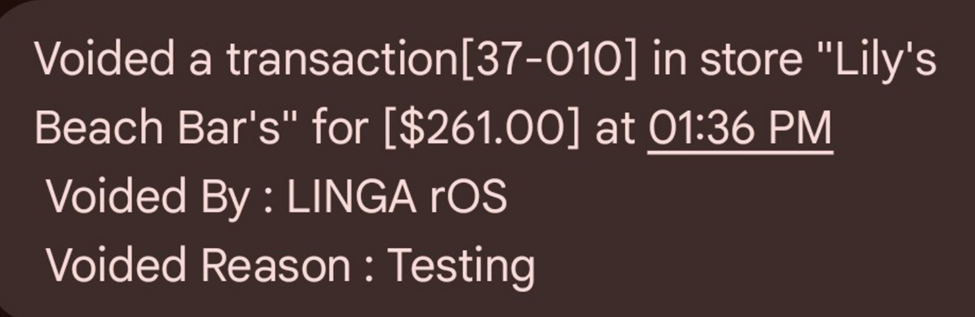
Text Notification
Example: Voiding an Order
Related Articles
POS: Operation - Customer Display Hardware Settings
Back Office CDS Back Office Settings For more information, see the Back Office CDS Settings Knowledge Article. License Settings Navigation: Log into Enterprise, then select Licenses > License Settings To integrate CDS with the POS of a Store: the ...POS: Offline Mode
Offline Mode in POS Navigation: Log into POS then select POS Operations > POS Settings The toggle Offline Mode under POS settings enables you to switch the device between Offline and Online and will be Disabled by Default. Offline Mode Toggle When ...POS: Tip Threshold
Thresholds for Tip amount, Tip percentage, Tip validation and Tip validation alert message will appear in BO. When a Tip has crossed the Tip Threshold settings: a Tip Approval pop-up appears in POS for a Manager to validate. Back Office General ...POS: Tip Threshold
Thresholds for Tip amount, Tip percentage, Tip validation and Tip validation alert message will appear in BO. When a Tip has crossed the Tip Threshold settings: a Tip Approval pop-up appears in POS for a Manager to validate. Back Office General ...POS: Offline Mode
POS Navigation: Log into POS, then select POS Operations > POS Settings On the POS Settings page: the Offline Mode toggle appears and will be disabled by default. It is for switching the device from Online to Offline. If enabled, then the system ...