Back Office: Account Balance Report Settings
- Sign into the Back Office then select a Store.
- On the left-side Navigation Panel, click Settings.

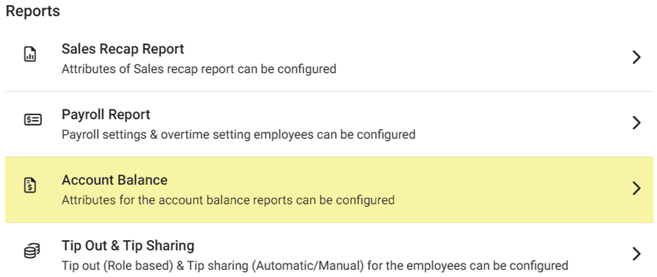
- On the Settings page, under Reports click Account Balance.
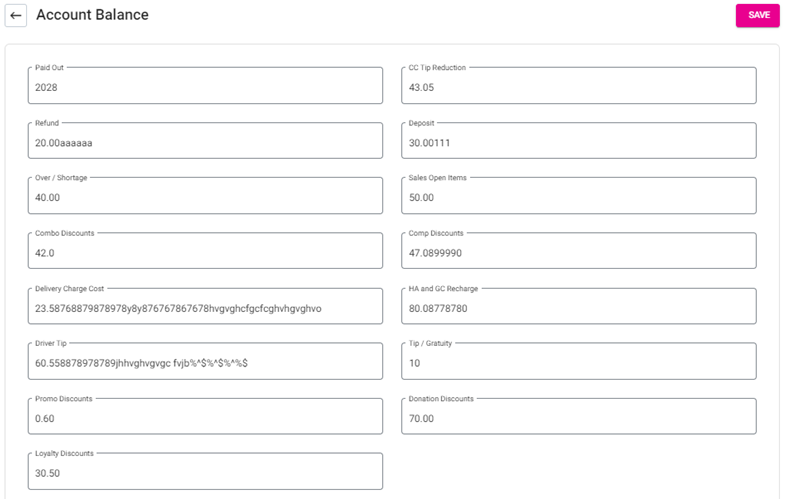
- The Account Balance page contains multiple fields to fill in. Enter a value in each field (letters and numbers acceptable) for it to appear on the Account Balance report:
- Paid Out, CC Tip Reduction, Refund, Deposit, Over/Shortage, Sales Open Items, Combo Discounts, Comp Discounts, Delivery Charge Cost, HA and GC Recharge, Driver Tip, Tip/Gratuity, Promo Discounts, Donation Discounts, and Loyalty Discounts.
- Click Save. The confirmation ‘Account Balance Updated Successfully’ appears.
Related Articles
Account Balance Report
Sign into the Back Office and select a Store. On the left-side Navigation Panel, click Reports then Account Balance. The Account Balance page displays the store’s Account Balances. Select a Date (calendar view). Only 1 date can be selected at a time. ...
Back Office: User Management - How to Add, Edit and Update Employee Roles
Sign into the Back Office and select a Store. On the left-side Navigation Panel, click User Management then select Roles. On the Roles page, click + New Role at the top-right. The New Role pane appears. You can update a Role by clicking the ...
Back Office: Additional Report Settings
Sign into the Back Office and select a Store. On the left-side Navigation Panel, click Settings. On the Settings page, under Reports click Additional Settings. The Additional Settings page contains multiple toggles for fields to Enable (YES) to ...
Back Office: Payroll Report Settings
Sign into the Back Office. On the left-side Navigation Panel, click Settings. On the Settings page, under Reports click Payroll Report. On the Payroll Report page, 3 tabs appear: Settings, Overtime Settings, and Manage Breaks. Settings Over Time ...
Back Office: Inventory Matrix Report Settings
Sign into the Back Office. On the left-side Navigation Panel, click Settings. The Settings page appears. Under Inventory click Matrix Report Settings. The Matrix Report screen appears. Profit Threshold Amount – (Mandatory) Enter the threshold value ...