Back Office: Integration Hub User Manual
Description: The steps to subscribe to and use the Integration Hub add-on
Navigation: Log into your Store, then select Upgrade > Manage Plan > Enterprise Level
- At the Enterprise level, purchase the amount of Integration Hub add-ons based on the Store’s needs.
- The new Integration Hub addon will be added in Addons per Site based on the Store.
- Enter the number of licenses (quantity) or increase/decrease with ▲/▼.
- License: After subscribing, you can assign Integration Hub addon(s) (Store level) for the desired Store(s). After confirming, click Save at the upper-right. The confirmation ‘License settings saved successfully’ message appears.
- Note: If you buy Integration Hub based on the number of Stores, it will show how many stores can have access to the Integration Hub as the Max Stores number above the Add-On Store name column header.
- Example: If you buy 1 subscription of Integration Hub, it will be available for only 1 Store. You can then enable the toggle for a Store. If you attempt to enable for more than 1 store, the toggle will automatically disable (slid back to the left and turned grey).
Pro Level
License: After subscribing, you can assign Store-level permission for the Integration Hub by enabling the Integration Hub (toggle on, slid to right and turned pink) for that specific store. After confirming, click Save at the upper-right. The ‘License settings saved successfully’ confirmation message appears.
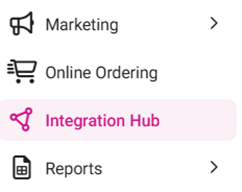
Navigation: Log in and select a Store. On the Home page, click Integration Hub.
On the Integration Hub page, 4 options are available:
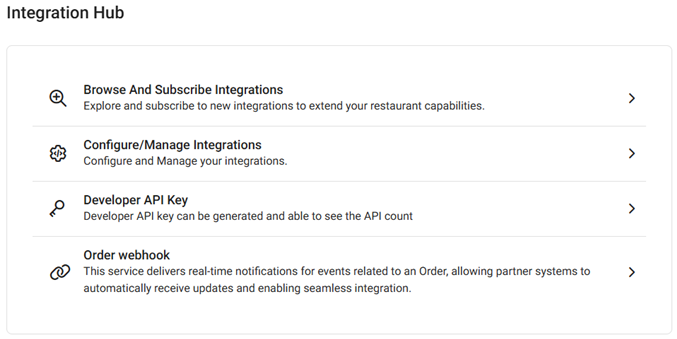
Browse And Subscribe Integrations
- If you are not subscribed to the Integration Hub, clicking the option will direct you to the Integrations page where you can subscribe to the Integration Hub. Upon clicking Upgrade, the page will provide information about the add-ons and prompt you to upgrade. If you have already subscribed to the Integration Hub, you can add integrations by clicking the Add on the corresponding tile.
Configure/Manage Integrations
- When clicked, the Current Integration page appears, which displays the Store’s current Integration.
Adding Integrations/Addons
- To add a new Integration:
- Click + Add New Integration at the upper-right.
- The Add Integrations page appears. When you find the Integration you wish to add, click the corresponding Add.
- Click Know More to view the user guide for that integration.
- The Disclaimer page appears. After selecting the Terms and Conditions box at the bottom-left, click Confirm at the upper-right.
- The Integration is added to that Store and will appear as a row on the Current Integrations page.
Configuring Integrations
- Once you are subscribed to the integration, it is shown on the Current Integrations page.
- To configure an integration, under the Actions column at the end of its row click its corresponding gear icon.
- The integration’s configuration page appears, with tabs for Settings and Action. Here you can configure the credentials required for the integration.
- After adding or changing any credentials, click Save at the bottom right. The updated credentials are saved, and you’re returned to the Current Integrations page.
Developer API Key
- When clicked, the Developer API Key page appears, where you can see the Developer API Key for the store.
Order Webhook
- When clicked, the Order webhook page appears, where you can set the order webhooks for the store based on the integrations.
Activate / Deactivate
To Deactivate an Integration
- Under the Actions column, click the Delete (trash can) icon.
- The Delete pop-up appears, with options to Delete or Cancel. Select Delete to confirm deactivation of the Integration. Select Cancel to keep the Integration as Active and remain on the Current Integrations page.
To Activate an Integration
- Just above the left side of the table, click the Active button. The Deactivated Integrations appear.
- Under the Actions column, select the icon containing a check mark inside a circle.
- The Activate pop-up appears, with options to Yes, Activate or Cancel. Select Yes, Activate and the Integration will appear as Active on the Current Integrations page. Select Cancel to keep the Integration as Inactive and remain on the Current Integrations page.
Related Articles
Integration Hub: Order Webhook Settings
A webhook is a service that allows a program to send data to another the moment a particular event occurs. Configuration in Integration Hub Navigation: Log into Back Office, then select Home > Integration Hub On the Integration Hub page: click Order ...Restaurant365 Integration
Subscribe to and Configure Restaurant365 in Back Office Page Navigation: Log into Back Office. On the left-side pane, select Home then Integration Hub. On the Integration Hub page, select Browse and Subscribe Integrations. Under the Inventory ...Shogo Integration
Subscribe and Configure in Back Office Page Navigation: Log into Back Office. On the left-side pane: select Home then Integration Hub. On the Integration Hub page, select Browse and Subscribe Integrations. Under the Inventory Management section: for ...Back Office: User Management - Employee Tip Adjustment
Sign into the Back Office. On the left–side Navigation Panel, click User Management then Tip Adjustment. The Tip Adjustment page appears. Select the Billing Date and Employee Type, then click Apply. Billing Date Filter – Select the Billing Date ...Servme Integration
Prerequisites An active Servme account configured with POS integration. Please contact POS support to get the API Key, Store ID, Account ID, Employee User ID, and Employee User Token which are required to configure the Servme integration. Close and ...