Back Office: Item Service Charges
- Sign into the Back Office and select a Store.
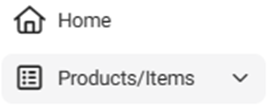
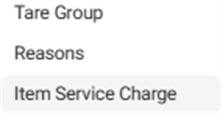
- On the left-side Navigation Panel, click Products/Items then Item Service Charge (the bottom dropdown option). The Item Service Charge page appears.

- Active
 – (Default) All active service charges are displayed.
- Inactive
 – All inactive service charges are displayed.
- For an Inactive service charge, click the circled check mark under Actions
 to activate it. The Activate pop-up appears. Click Yes, Activate to confirm activating the service charge. The service charge is activated and is removed from the Inactive table. The confirmation banner ‘Service Charge Activated Successfully’ appears at the top-right. Click Cancel / X Close to cancel activating the service charge.
Create a New Service Charge (or Update an Existing Service Charge)
To create a new service charge, click + New Item Service Charge, or to update an existing service charge click its corresponding pencil icon. The New / Update Item Service Charge pane appears.

Name – (Mandatory) Enter the item service charge’s name. It can’t exceed 25 characters.
Percentage – (Mandatory) Enter the percentage of the item service charge (numbers only, up to 3 decimal places and cannot exceed 100.000).

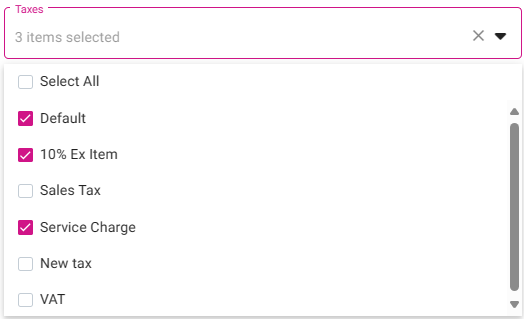
Taxes – Select all Taxes (created in Back Office) that apply from the dropdown or click the Select All box for all of them.
To de-select a Tax, click the corresponding checked box. To de-select all the currently selected Taxes, click the x at the dropdown header.
When you’re ready to create the new service charge click Save (or update an existing service charge click Update). You are returned to the Item Service Charge screen with a confirmation message appearing at the upper-right. If it’s a newly created service charge, it will now appear as a row in the table.
To cancel creating or updating a service, click X Close or Cancel.
Related Articles
Creating Item Service Charge
Sign into the Back Office and select a Store. On the left-side Navigation Panel, click Products/Items then Item Service Charge (the bottom dropdown option). The Item Service Charge page appears. Active – (Default) All active service charges are ...
Back Office: Open Item Discounts
Sign into the Back Office and select a Store. On the left-side Navigation Panel, click Products/Items then click Discounts. On the Discounts page, select the Open Item tab. On the Open Item page, click Edit. Tip: You can Activate or Deactivate the ...
Back Office: Item-Based Discounts
Sign into the Back Office and select a Store. On the left-side Navigation Panel, click Products/Items then click Discounts. Create an Item Based Discount On the Discounts page, select the Item Based tab (default selection), then click + New Discount. ...
Back Office: Modifiers
Sign into the Back Office and select a Store. On the left-side Navigation Panel, click Products/Items then Modifiers. On the Modifiers screen: create a New Modifier by clicking + NEW MODIFIER or update an existing Modifier by clicking the pencil ...
Back Office: Sub Categories
Sign into the Back Office. On the left-side Navigation Panel, click Products/Items then click Subcategory. On the Subcategories page, click + New Subcategory at the top-right. POS Display Button - Click the small colorized square next to the large ...