Creating Item Service Charge
- Sign into the Back Office and select a Store.
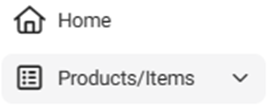
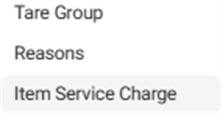
- On the left-side Navigation Panel, click Products/Items then Item Service Charge (the bottom dropdown option). The Item Service Charge page appears.

- Active
 – (Default) All active service charges are displayed.
- Inactive
 – All inactive service charges are displayed.
- For an Inactive service charge, click the circled check mark under Actions
 to activate it. The Activate pop-up appears. Click Yes, Activate to confirm activating the service charge. The service charge is activated and is removed from the Inactive table. The confirmation banner ‘Service Charge Activated Successfully’ appears at the top-right. Click Cancel / X Close to cancel activating the service charge.
Create a New Service Charge (or Update an Existing Service Charge)
To create a new service charge, click + New Item Service Charge, or to update an existing service charge click its corresponding pencil icon. The New / Update Item Service Charge pane appears.

Name – (Mandatory) Enter the item service charge’s name. It can’t exceed 25 characters.
Percentage – (Mandatory) Enter the percentage of the item service charge (numbers only, up to 3 decimal places and cannot exceed 100.000).

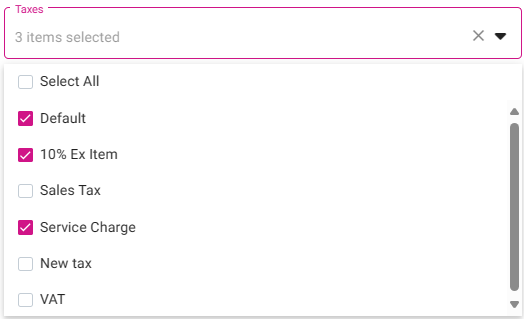
Taxes – Select all Taxes (created in Back Office) that apply from the dropdown or click the Select All box for all of them.
To de-select a Tax, click the corresponding checked box. To de-select all the currently selected Taxes, click the x at the dropdown header.
When you’re ready to create the new service charge click Save (or update an existing service charge click Update). You are returned to the Item Service Charge screen with a confirmation message appearing at the upper-right. If it’s a newly created service charge, it will now appear as a row in the table.
To cancel creating or updating a service, click X Close or Cancel.
Related Articles
Back Office: Item Service Charges
Sign into the Back Office and select a Store. On the left-side Navigation Panel, click Products/Items then Item Service Charge (the bottom dropdown option). The Item Service Charge page appears. Active – (Default) All active service charges are ...
POS: Check Options - Service Charge Exempt
Back Office For more information on Service Charge functionality in the Back Office, see the following Knowledge Articles: Item Service Charge Store Payment Settings POS To exempt a Service Charge from the Check: On the Menu screen, select the Option ...
Creating Item Upcharge
Sign into the Back Office then select a Store. On the left-side Navigation Panel, click Products/Items then Upcharges. The Upcharges page appears. It contains a table of existing Upcharges, with columns for the Name of the Upcharge and Actions that ...
How to Create an Open item
Create an Open Item Tap on options Tap on open item Give a coursing, item name, price, and a tax Tap on done |
How to Void an item from order (delete)
Void an Item Tap on the item OR swipe the item to the left Hit delete Tap on void item On iOS: | On Android: Note: If the item was sent to the Kitchen, you must provide a reason to complete the Void.