Back Office: Revenue Center Report Settings
- Sign into the Back Office and select a Store.
- On the left-side Navigation Panel, click Settings.
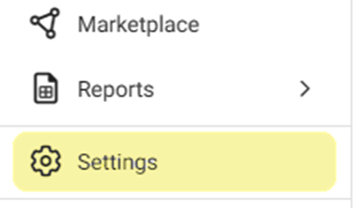
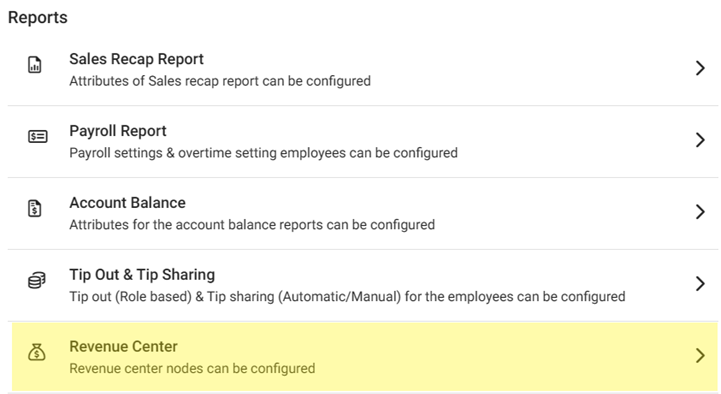
- On the Settings page, under Reports click Revenue Center.
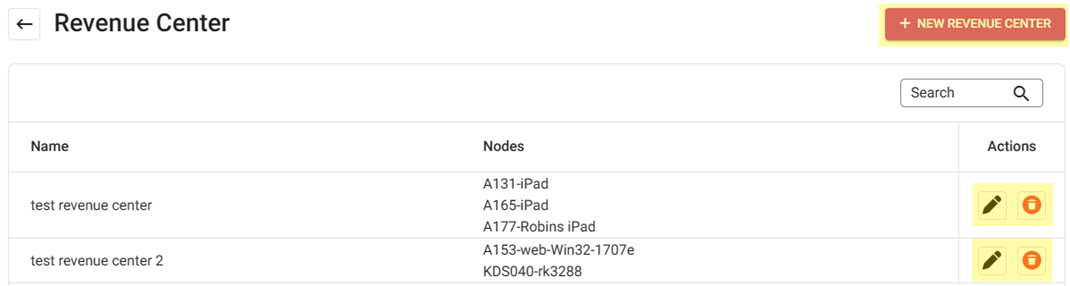
- On the Revenue Center page, click + New Revenue Center to create a new one, click the Pencil Icon to update an existing one or click the Trash Can to delete it.
- On the New (or Update) Revenue Center pane:
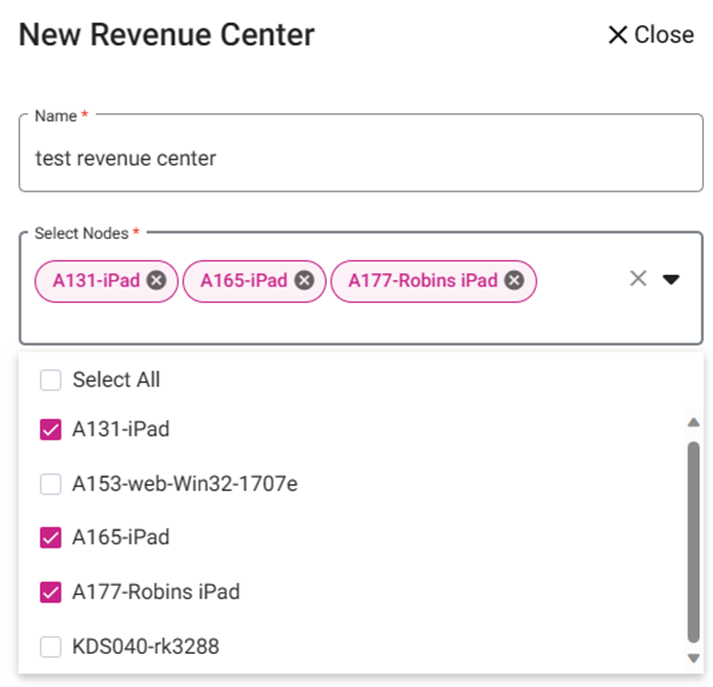
- Enter the Name of the Revenue Center.
- Select all the Nodes attached to the Center on the dropdown.
- When complete, click Save (or Update) at the bottom-right of the pane.
- If a Revenue Center was created, it will appear as a new row in the table, with the entered Name and selected Nodes.
Related Articles
POS: Revenue Center
Background in BO Navigation: Login to BO, select a Store, then select Settings > Revenue Center In BO, you can set a new Revenue Center by providing the Name and Node details Enter the Name of the new Revenue Center. Select the Node(s) from the list ...
Back Office: User Management - How to Add, Edit and Update Employee Roles
Sign into the Back Office and select a Store. On the left-side Navigation Panel, click User Management then select Roles. On the Roles page, click + New Role at the top-right. The New Role pane appears. You can update a Role by clicking the ...
Back Office: Additional Report Settings
Sign into the Back Office and select a Store. On the left-side Navigation Panel, click Settings. On the Settings page, under Reports click Additional Settings. The Additional Settings page contains multiple toggles for fields to Enable (YES) to ...
Back Office: Payroll Report Settings
Sign into the Back Office. On the left-side Navigation Panel, click Settings. On the Settings page, under Reports click Payroll Report. On the Payroll Report page, 3 tabs appear: Settings, Overtime Settings, and Manage Breaks. Settings Over Time ...
Revenue Report
Displays a breakdown of the Store’s Revenue. The Revenue Center is used to organize all the different transactions at the store based on the POS Device/Node (which are defined in Revenue Center settings) and Shift (set on the Store Hours setting ...