Back Office: User Management - Terminating and Deleting an Existing User/Employee
Sign into the Back Office.
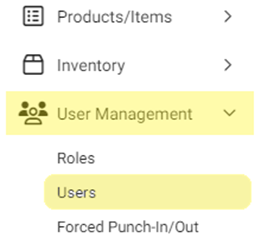
On the left-side Navigation Panel, click User Management then Users.
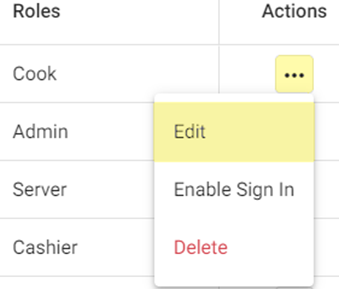
On the Users screen, under the Actions column click the corresponding three dots (•••) for a User then click Edit.
Scroll down to Termination Settings (between Address and Payroll).
Enter the Termination Date (calendar selection), and the Termination Reason (such as voluntarily resignation).

Click Update. You’re returned to the main Users screen.
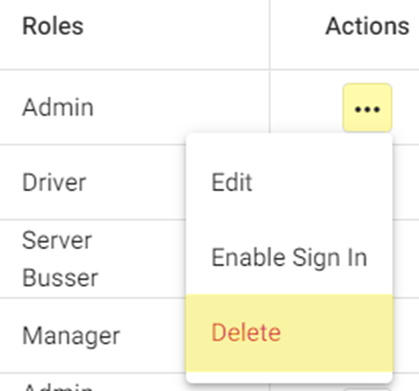
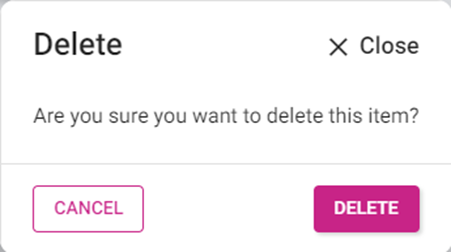
Click the three dots (•••) for the terminated user, then click Delete. The Delete pop-up appears, then click Delete again to confirm or Cancel / X Close to keep them Active.
If deleted, the user will move to Inactive Status. Click the Active button to switch to viewing all Inactive users.
Related Articles
Back Office: User Management - Editing an Existing Employee/User
Sign into the Back Office and select a Store. On the left-side Navigation Panel, click User Management then Users. On the Users screen, under the Actions column click the ••• for a User then click Edit. When adding or editing a User, the following ...
Back Office: User Management - Employee Roles Description
Detailed information about each role in the User Management Role settings Backoffice: These settings control the settings that are programmed in the back office Gratuity – Changing the Gratuity setting Gift Card – Can access the gift card information ...
Back Office: User Management - Employee Tip Adjustment
Sign into the Back Office. On the left–side Navigation Panel, click User Management then Tip Adjustment. The Tip Adjustment page appears. Select the Billing Date and Employee Type, then click Apply. Billing Date Filter – Select the Billing Date ...
Back Office: Scheduler
Shift Management can be performed on the Scheduler screen. Log into Back Office then select a Store. On the left-side navigation screen, select Scheduler then Scheduler. The Scheduler screen displays the following details and information: Note: The ...
Back Office: User Management - Disabling User/Employee from Signing Into Back Office
Sign into the Back Office and select a Store. On the left-side Navigation Panel, click User Management then Users. On the Users screen, under the Actions column click the three dots ••• for a User then click Disable Sign In. The User Disabling pop-up ...