Customer Preference Report
Sign into the Back Office and select a Store.
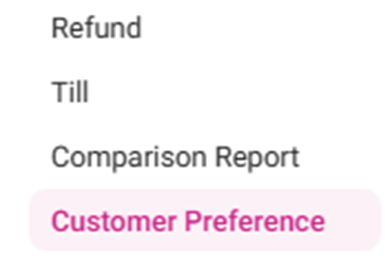
On the left-side Navigation Panel, click Reports then Customer Preference.
The Customer Preference report page displays a customer's ordering activity. Filter by the following along withTime Period.

Employee: Select an Employee’s name (of the list of employees who set the till) from the dropdown (or All). You can Search to find the employee more quickly.
Include Settings: Select Category, Subcategory, Serving Size, or All (all 3).
When Apply is clicked, the table is populated with the below columns:
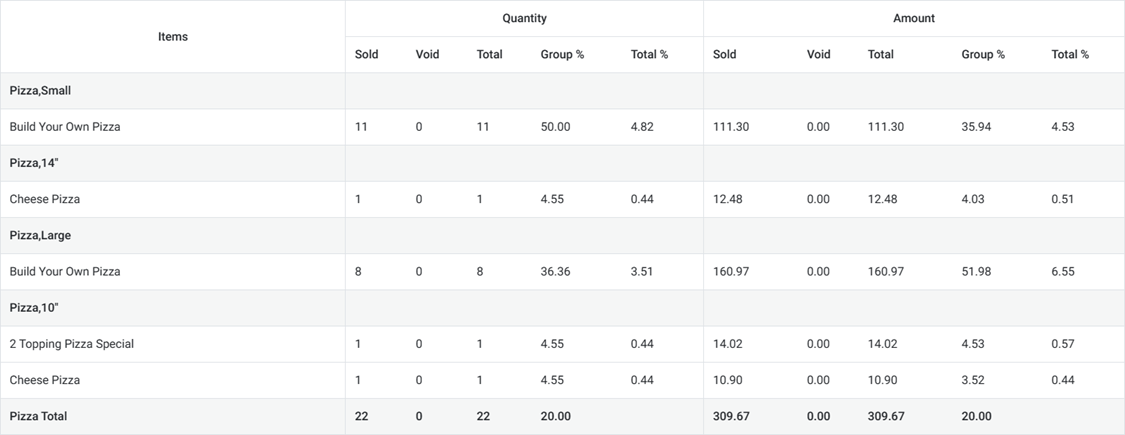
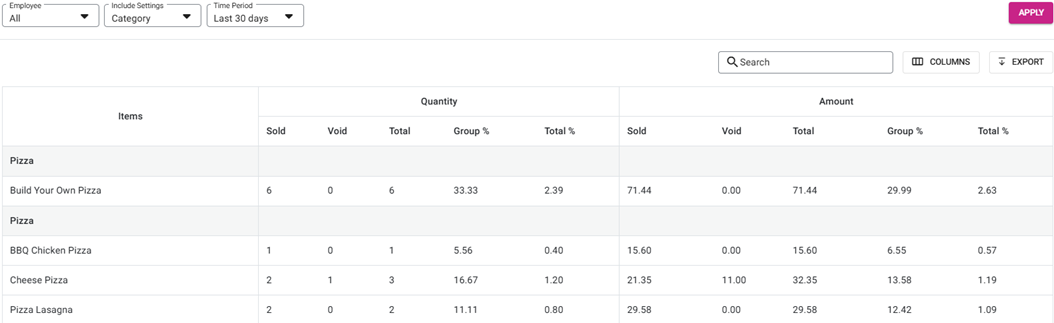
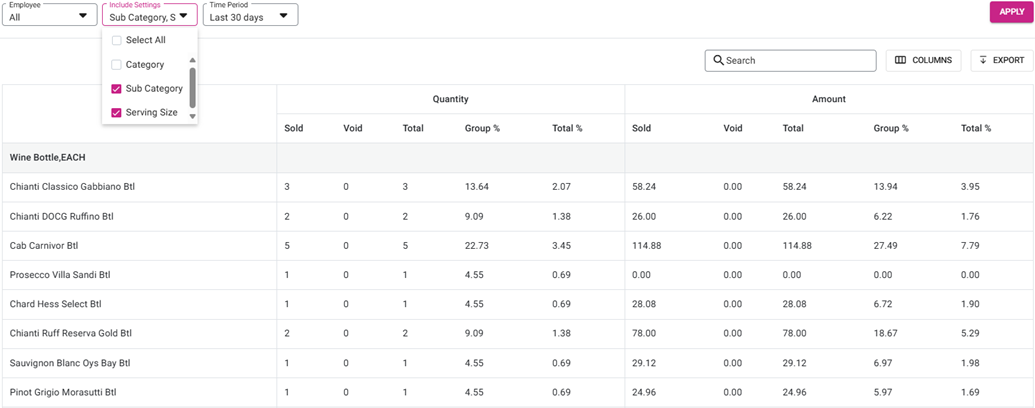
Items: The item’s category, subcategory and serving size.
Quantity: Sub headers for amounts Sold (quantity), Void (quantity), Total (Sold Quantity + Void Quantity), Group % and Total %.
Amount: Sub headers of the amounts Sold (in currency), Void (in currency), Total (Sold Amount + Void Amount), Group % (Item Total / Group Total) and Total % (Item Total / Grand Total [at the very bottom]).
The overall Total appears for the Quantity and Amount of each Category, Sub-Category and Serving Size.
The Grand Total appears at the very bottom of the table for all columns.

Note: The organization of the table will be broken down by the Items column depending upon the Include Settings selections:
Example: When Select All (Category, Sub Category and Serving Size) is selected:
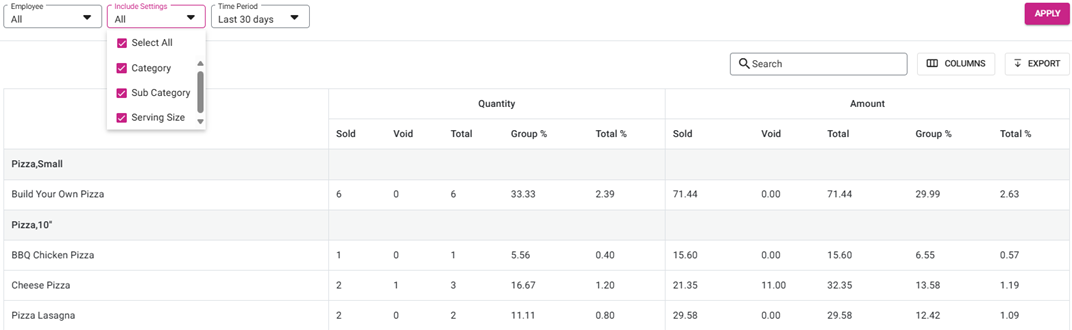
- Example: When just Category is selected:
- Example: When Sub Category and Serving Size are selected
Related Articles
Customer Membership Report
Log into the Back Office and select a Store. Select Report then Membership. The Membership report page contains the following tab options: Membership Summary Membership Statement Membership Summary Displays the details of a Customer’s activity when ...
Feedback Report
Sign into the Back Office and select a Store. On the left-side Navigation Panel, click Reports then Feedback. The Feedback Report page contains a table with the following columns: Question – What question was asked of the customer. Answer Logo – The ...
Report Terminology
Gross sale: Gross sale = All Sale – Non-Sale Revenue All sale = Sum of All Tenders (Payment Summary minus CC Service Charge if applicable) + Gross Void + Discount + Discount tax + Void Discounts + Void Discount Tax Note: Tips/Gratuity and CC Service ...
Discounts Report
Sign into the Back Office and select a Store. On the left-side Navigation Panel, click Reports then Discount. Sales Created By Window – When a Sales Created By value is clicked, a new window opens: Upon clicking the Sale Created By employee, it ...
Comparison Report
Sign into the Back Office and select a Store. On the left-side Navigation Panel, click Reports then Comparison Report. The Comparison Report displays a comparison between two or more (click Compare Time to add more filters, up to a total of 4) ...