Paid In / Paid Out Report
- Select a Paid Type then Time Period.
- Paid Type - Select Paid In, Paid Out or All (both).
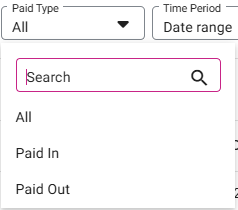
Click Apply. The table with the below columns is populated:
Node – The Name of the Node.
Business Date – The business date of the Paid Type, displayed in the selected format.
Transaction Date – The transaction Date and Time of the Paid Type, displayed in the selected format.
Paid On/Paid Out – The user (employee) who conducted Paid In/Paid Out transaction.
Amount – The total amount that was Paid In/Paid Out.
Paid From/ Paid To – The user who made this Paid In/Paid Out.
Reason – This displays the reason for paid in/out.
Total – The Total will be available to show the total value in the Amount column.
Related Articles
Report Terminology
Gross sale: Gross sale = All Sale – Non-Sale Revenue All sale = Sum of All Tenders (Payment Summary minus CC Service Charge if applicable) + Gross Void + Discount + Discount tax + Void Discounts + Void Discount Tax Note: Tips/Gratuity and CC Service ...
Employee Report
Sign into the Back Office and select a Store. On the left-side Navigation Panel, click Reports then Employee. The Employee report page displays a comprehensive set of data on your staff, with tabs for: Attendance Role Based Payroll Labor Labor By Job ...
Discounts Report
Sign into the Back Office and select a Store. On the left-side Navigation Panel, click Reports then Discount. Sales Created By Window – When a Sales Created By value is clicked, a new window opens: Upon clicking the Sale Created By employee, it ...
Inventory Report
Log into the Back Office and select a Store. Under Reports > Inventory Reports. On the Inventory Reports dashboard, select a tab. Master Stock Purchased Item Consumption Log Compare Inventory Count Sheet COGS Consumption Log Count Sheet Adjust ...
Daily Tender Report
Sign into the Back Office and select a Store. On the left-side Navigation Panel, click Reports then Daily Tender. Select aTime Period from the dropdown: Today – The report will run based on Today’s store business date. Yesterday – The report will run ...