POS: Send an Order to the Kitchen
When the Customer is finished placing their Order and it's ready to send to the Kitchen for preparation:
Select the Order option.
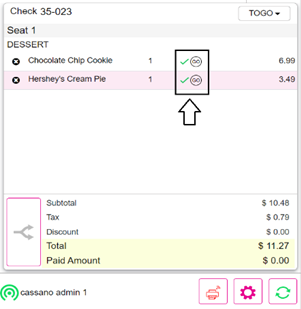
The Order will be finalized and sent to the Kitchen to be prepared. A green check mark ✔ will appear on the Order screen, denoting that the details have been sent to the Kitchen.
Related Articles
POS: Check Options - Submit an Order
On the Menu screen, select the Option button at the bottom. On the Check Options screen, select Order. When Order is clicked, Menu Items from the Check will be send to the Kitchen.
POS: Check Options - Holding an Order
To Hold an Item on a Check, see the Hold an Item Knowledge Article. Holding a Whole Check On the Menu screen, select the Option button at the bottom. On the Check Options screen, select Hold. Holding Menu Item(s) Sometimes you need to flag an ordered ...
POS: Custom Button
Back Office You can customize 6 fields as the Custom Buttons in POS, with drop down for all 6 options. The dropdown options are: Discount Order Search Print Cash Modify Void Credit Card Gift Card URL URL will only appear when POS URL is configured in ...
POS: Operation - Printer Hardware Settings
Back Office For more information on Printer and Receipt Template settings, see the following Knowledge Articles: Receipt Printers Kitchen Printers Kitchen Receipt Template POS On the Hardware Settings page, select the Printer Settings tab. It ...
POS: Uber Eats Integration
For more information on the Uber Eats (UE) Integration, see the Uber Eats Knowledge Article. Uber Eats Orders Appearing in POS Once an Order is placed from Uber Eats, the message ‘You have 1 online order’ appears in POS. The Check will be listed ...