Back Office: Product/Item Reasons
- Sign into the Back Office.
- On the left-side Navigation Panel, click Products/Items then Reasons.
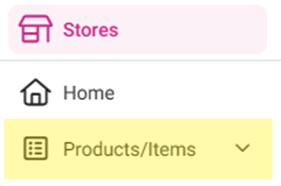
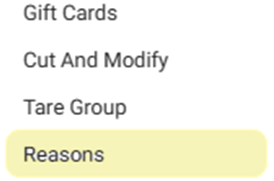
- On the Reasons screen: create a New Reason by clicking + NEW REASON or update an existing Reason by clicking the pencil icon.
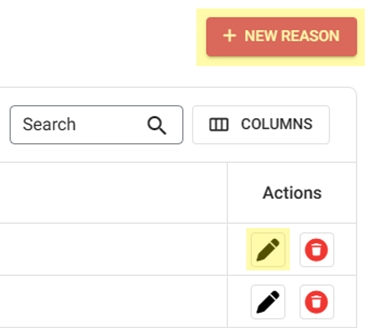
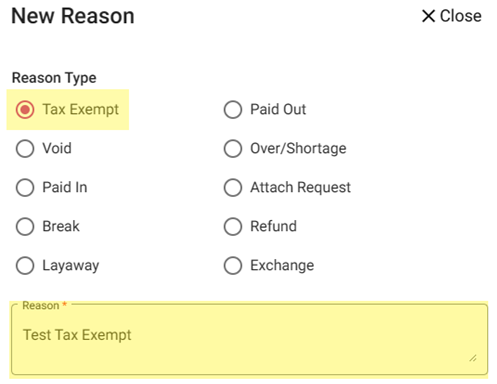
New Reason
- On the New Reason pane:
- Select the Reason Type.
- Enter the Reason.
- When finished, click Save at the bottom-right.
Update Reason
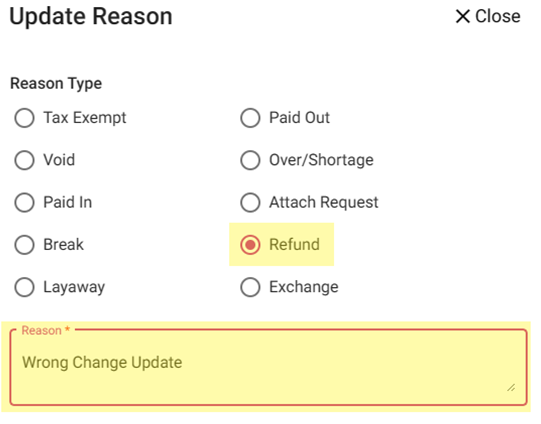
- On the Update Reason pane:
- Update the existing Reason Type
and / or - Update the existing Reason.
- When finished, click Update at the bottom-right.
Related Articles
Creating Predefined Product/Item Reasons + Other Reason Types
Sign into the Back Office. On the left-side Navigation Panel, click Products/Items then Reasons. On the Reasons screen: create a New Reason by clicking + NEW REASON or update an existing Reason by clicking the pencil icon. New Reason On the New ...
Back Office: Adjust Inventory Reasons
Sign into the Back Office. On the left-side Navigation Panel, click Inventory then Adjust Inventory Reasons. The Adjust Inventory Reasons screen appears, with the previously created Adjust Inventory Reasons appearing in table format. On this page, ...
Back Office: Item Service Charges
Sign into the Back Office and select a Store. On the left-side Navigation Panel, click Products/Items then Item Service Charge (the bottom dropdown option). The Item Service Charge page appears. Active – (Default) All active service charges are ...
Back Office: Open Item Discounts
Sign into the Back Office and select a Store. On the left-side Navigation Panel, click Products/Items then click Discounts. On the Discounts page, select the Open Item tab. On the Open Item page, click Edit. Tip: You can Activate or Deactivate the ...
Back Office: Item-Based Discounts
Sign into the Back Office and select a Store. On the left-side Navigation Panel, click Products/Items then click Discounts. Create an Item Based Discount On the Discounts page, select the Item Based tab (default selection), then click + New Discount. ...